Back to Asset Essentials Main Menu
Manage Technician Profiles and Availability
Use the Technician side panel to review and manage Technician information without leaving the Planner view. You can view profile details, assigned crew and shift information, skills and certificates, hourly rate details, and weekly availability. These details help schedulers confirm Technician qualifications and availability before assigning work.
Technician Profile
Use the Technician side panel to review Technician profile information and availability details without leaving the Planner view.
-
Navigate to Planner and Scheduler.
-
Go to the Team Planner section.
-
Review the list of available Technicians.
-
Select a Technician’s name. The Technician side panel opens on the right side of the screen and displays the selected Technician’s details.
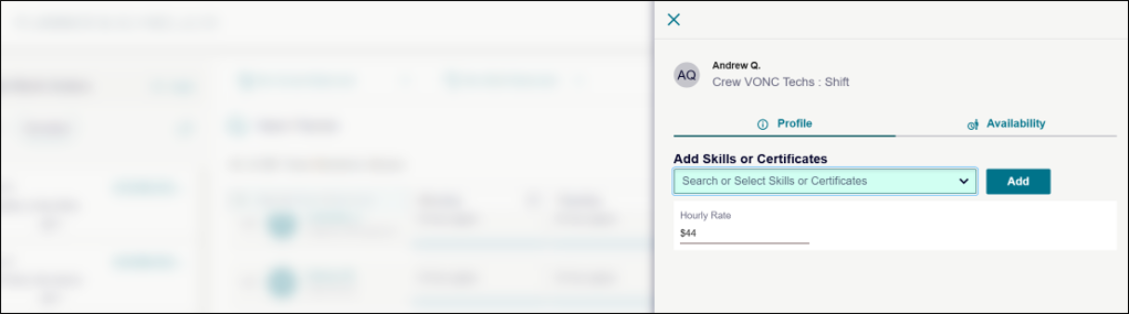
The side panel includes:
-
Technician’s profile header
-
Technician’s name
-
Assigned crew
-
Crew, shift, and default schedule details, if available
-
Profile tab: Use this tab to review the Technician’s profile information, skills and certificates, and hourly rate details.
-
Availability tab: Use this tab to review or update the Technician’s weekly schedule.
Note: If values such as Crew, Shift, or Default Schedule are missing, the corresponding fields appear blank.
Add Skills and Certificates
Use the Add Skills and Certificates section to assign certificates to a Technician.
Add Certificates
-
Open the Technician side panel.
-
On the Profile tab, locate Add Skills and Certificates.
-
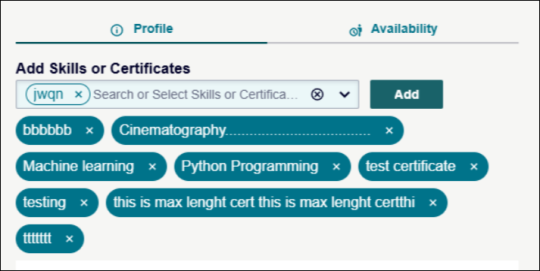
Review existing certificates shown as removable chips.
-
Select the Search or Select Skills or Certificates drop-down menu.
-
Search or filter the available certificates.
-
Select one or more certificates.
-
Click Add. The selected certificates will be added to the Technician’s profile and appear as removable chips.
Add Certificate Outcomes
If all selected certificates are saved, A success message appears.

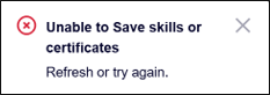
If the request fails, an error message appears. The previously selected certificates remain selected, and no new certificate chips are added.
Remove a Certificate
Use the remove option on a certificate chip to delete a certificate from a Technician profile.
-
Open the Technician side panel.
-
Go to the Profile tab.
-
Locate the certificate chip to remove.
-
Select the X icon on the certificate chip. The certificate will be removed, and a confirmation message appears.
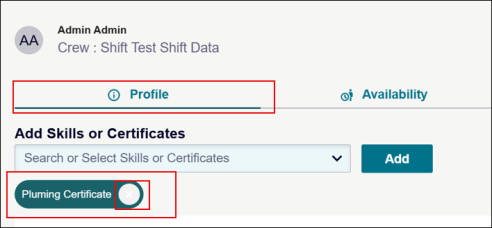
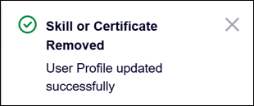
NOTE Only one certificate removal can be processed at a time.
Hourly Rate
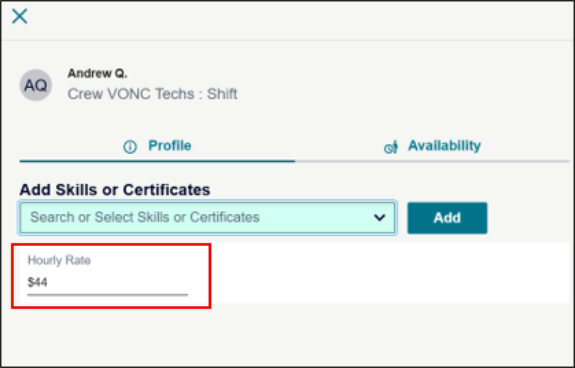
Use the Hourly Rate section to review a Technician’s hourly rate.
-
Open the Technician side panel.
-
Go to the Profile tab.
-
Locate the Hourly Rate section below Add Skills and Certificates. The hourly rate appears with a dollar sign ($) prefix, if configured.
NOTE If hourly rate is not configured, the Hourly Rate section still appears and shows $ with no amount or a placeholder.
Update Technician Availability
Use the Availability tab to review or update a Technician’s weekly schedule.
-
Open Planning and Scheduling.
-
Select a Technician to open the side panel.
-
Select the Availability tab.
-
Review the Technician metadata, including Crew, Shift, and Default Schedule.
-
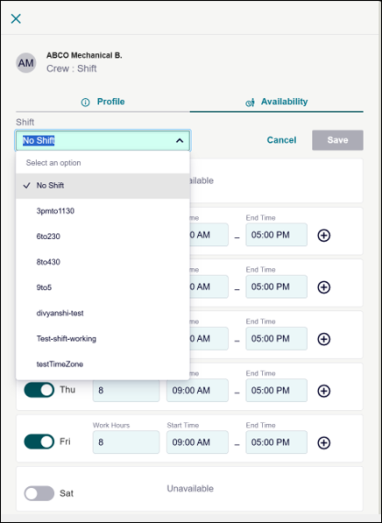
Select a shift from the drop-down menu to load the default schedule for that shift.
-
Update the availability for the selected shift, if needed.
-
Create a custom schedule, select No Shift from the drop-down menu.
-
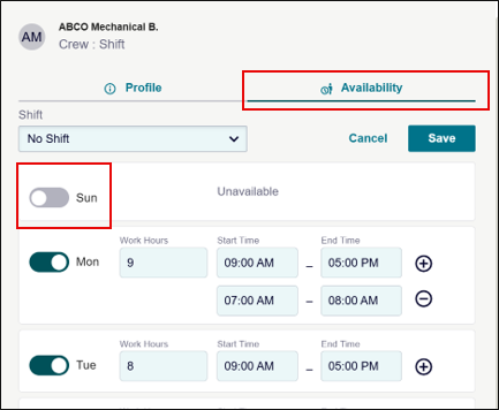
Turn a day toggle On to make the schedule fields editable.
-
Update the start time and end time as needed.
-
Add up to two additional shifts for the day, if required.
-
Enter start and end times for each additional shift.
-
Review the calculated work hours.
-
Click Save. The updated weekly schedule will be saved in Planner and Scheduler.
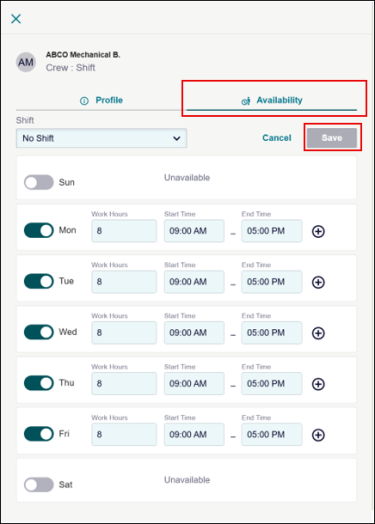
NOTE Work hours are calculated from the start and end times and cannot be edited manually.
Turn Availability off for a Day
Use the day toggle to mark a Technician as unavailable for a specific day.
-
Open the Technician side panel.
-
Select the Availability tab.
-
Locate the required day.
-
Turn the day toggle Off.
-
Click Save. Editing will be disabled for that day, but the toggle remains available.
Validate Schedule Changes
The system validates schedule entries before allowing changes to be saved.
Validation checks include:
-
Overlapping shifts
-
Invalid start or end times
-
Mismatched schedule hours
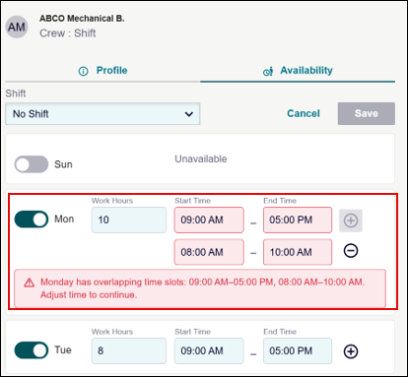
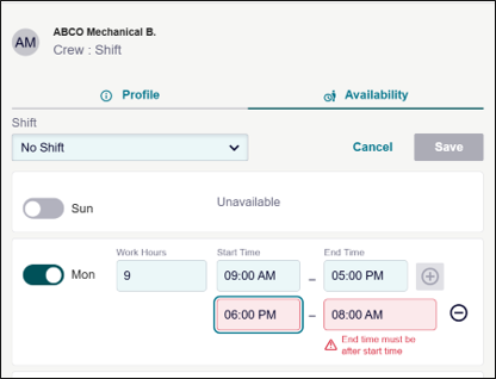
If the schedule is valid, Save Changes will be enabled. If the schedule is invalid, an error message appears, and the schedule cannot be saved until the error is corrected.
Toast Notifications
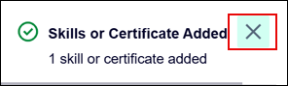
Toast notifications appear after profile or availability actions.
Notifications may appear when:
-
Certificates are added,
-
Some certificates are added,
-
Certificate updates fail,
-
A certificate is removed, or
-
Schedule changes are saved.
You can dismiss a toast notification by selecting the X icon. Toast notifications also close automatically after the standard timeout.
Best Practices
-
Use Crew and Shift filters before reviewing schedules.
-
Check capacity indicators before assigning work.
-
Avoid assigning work to Technicians who are already over capacity.
-
Review overdue work orders regularly.
-
Use hover cards to verify work order details before making changes.
-
Review Technician crew, shift, and default schedule before updating availability.
-
Use the shift dropdown to load default schedule values before editing availability.
-
Check for overlapping shifts before saving schedule changes.
-
Confirm toast messages to verify whether an action succeeded, partially succeeded, or failed.
